
Home-screen shortcut
Open the operator platform in the normal browser and use the browser’s “Add to Home Screen” or equivalent feature. The shortcut should resolve to the same operator destination.
Current Gamdom guidance says there is no native mobile app distributed by the operator. Gamdom app UK questions should therefore lead users to the browser-based mobile experience rather than to an unverified iOS or Android download.
Casino • Sports • Rewards • 18+ • Offer and product details can change.

Gamdom's security guidance states that it exists as a website and does not have an native mobile app distributed by the operator. On a phone or tablet, the straightforward route is therefore to use the web interface in a modern browser.
| Mobile question | Current answer | Practical action |
|---|---|---|
| Official iOS app? | No official native app is documented. | Use the website in Safari or another current browser. |
| Official Android app? | No official native app is documented. | Use the mobile website rather than an unaffiliated APK. |
| Same account? | The browser uses the same Gamdom account. | Sign in with the same email/social method used at registration. |
| Home-screen icon? | A browser shortcut can point to the website. | Treat it as a shortcut, not as a separately verified native app. |
Gamdom's current security notice warns about impersonation and unaffiliated apps. A familiar icon or app-store title is not enough to prove that an application belongs to the operator.
Keep account credentials, one-time codes and wallet information inside the known web account flow. If a third-party app asks for a seed phrase or directs deposits to a wallet sent through chat, do not use it.
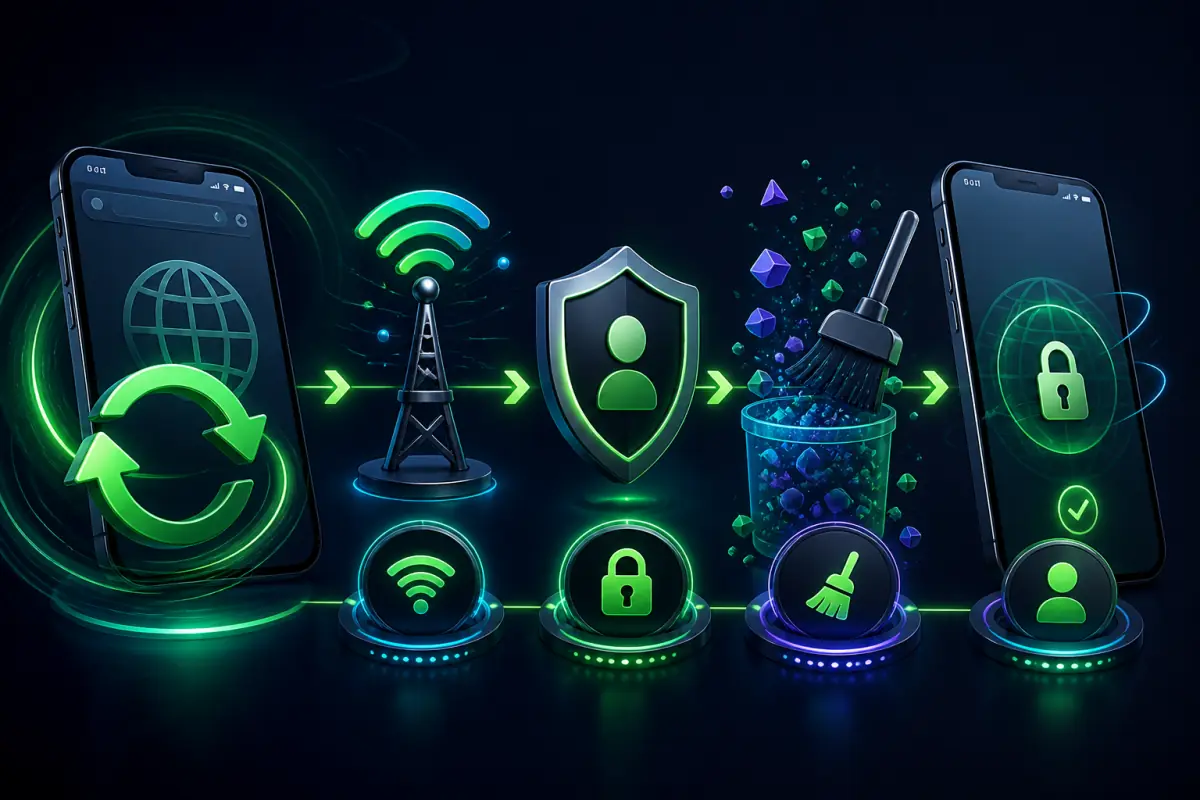
When a mobile page behaves incorrectly, start with ordinary browser maintenance: update the browser, clear stale cache/cookies and retry the account flow. If the problem is specifically account access, use the guidance on the Gamdom login page rather than repeatedly creating new credentials.
Open the sponsored registration path in your mobile browser and create the account using the sign-in method you want to keep.
The supplied Gamdom security material describes the mobile experience as browser-based rather than dependent on a native application. That means account access, game browsing, wallet activity and rewards should be approached through the responsive website. A home-screen shortcut can provide faster access without installing an unverified package.
On mobile, verify the destination before entering credentials, keep the operating system and browser current, and avoid saving passwords on shared devices. Do not sideload APK files or trust a store listing solely because it uses the brand name or artwork.
Open the operator platform in the normal browser and use the browser’s “Add to Home Screen” or equivalent feature. The shortcut should resolve to the same operator destination.
Use device lock, sign out on shared devices and protect the email or social account used for authentication. Avoid screenshots containing wallet addresses, identity documents or recovery data.
If the mobile site behaves incorrectly, start with a normal browser refresh, confirm network connectivity and check whether privacy or content-blocking settings are interfering with scripts. Clearing site data can remove stale sessions, but it will also sign the user out, so recovery access should be available first.
A verification request, location restriction or account limitation will not be solved by installing another browser or an unofficial app. Those states must be handled through the operator account and support process.